Every edit builds on an accurate render of your 3D model, not a text guess.
AI + 3D
AI direction,
on a live 3D set.
AI tools start from one photo and guess. Glossi's AI works on a live 3D set: an accurate source frame of any product, any angle, any colorway, and every edit lands back beside the original. The set stays live. The direction is reusable.
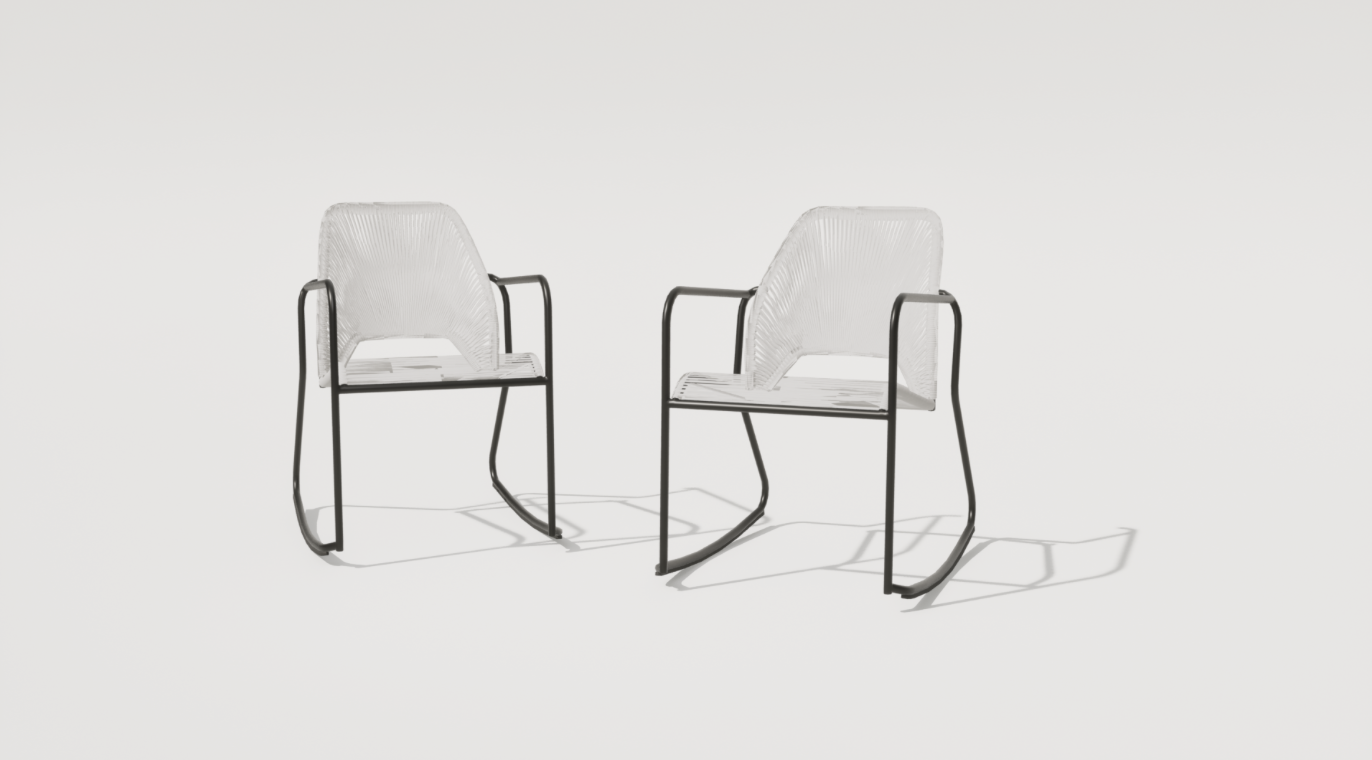
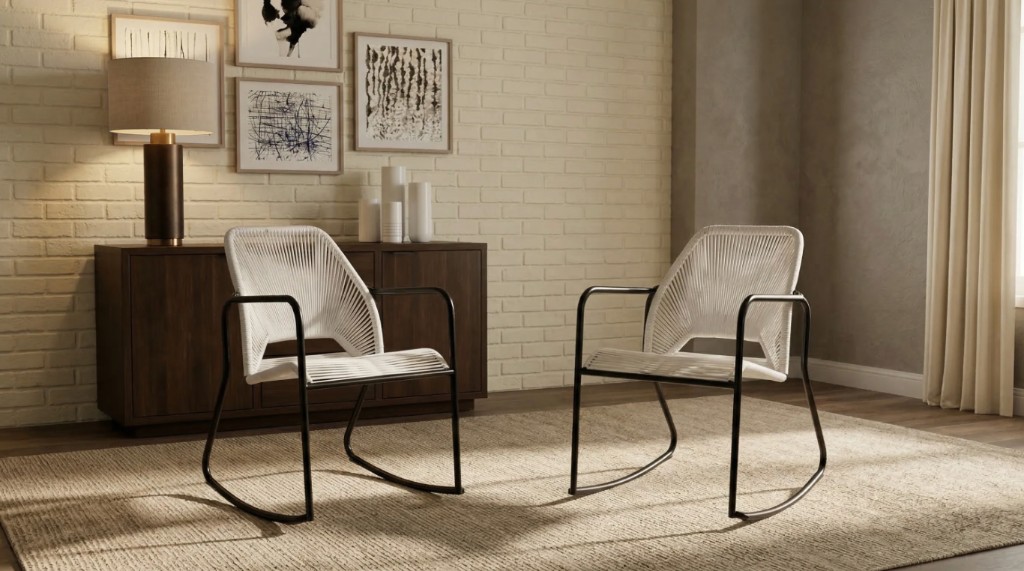
AI Styles, references, and annotations steer the scene, mood, and style.
The source render sits beside every AI version, so you always compare against truth.
Why 3D changes the workflow
Most AI image workflows end with a flat file. Glossi replaces the flat file with a 3D scene. Model, materials, lighting, and cameras stay editable, so when the product or the shot changes, you render a new source and edit from there.
Explore the studio behind the renders
3D source of truth
Change the shot without starting over.
Every AI edit reads from the live 3D scene behind it. Move the camera, swap the colorway, relight the set, then re-render. Everything you set up applies to the new source, and the product never drifts.
- Re-render the source at any angle or variant
- Direction carries to every new shot
- Accuracy checks compare against the model
Precise creative control
Direction is a toolkit, not a prompt.
Add an AI Style, a reference image, annotations, and layout guides to the edit. Preserve framing locks size, angle, and crop. Product accuracy generates extra candidates and keeps the one truest to the model.
- AI Styles and references
- Annotations and layout guides
- Optional product-accuracy checks
Studio Agent Beta
Tell Studio what to change. Watch it happen live.
Ask the Studio Agent in plain language. It applies each change in the live viewport, where you can review it and keep editing. Today that covers film grain, vignette, and other post-process controls.
Current betaFilm grain, vignette, and supported post-process controls.
Building towardMaterials, lighting, cameras, layout, and motion.
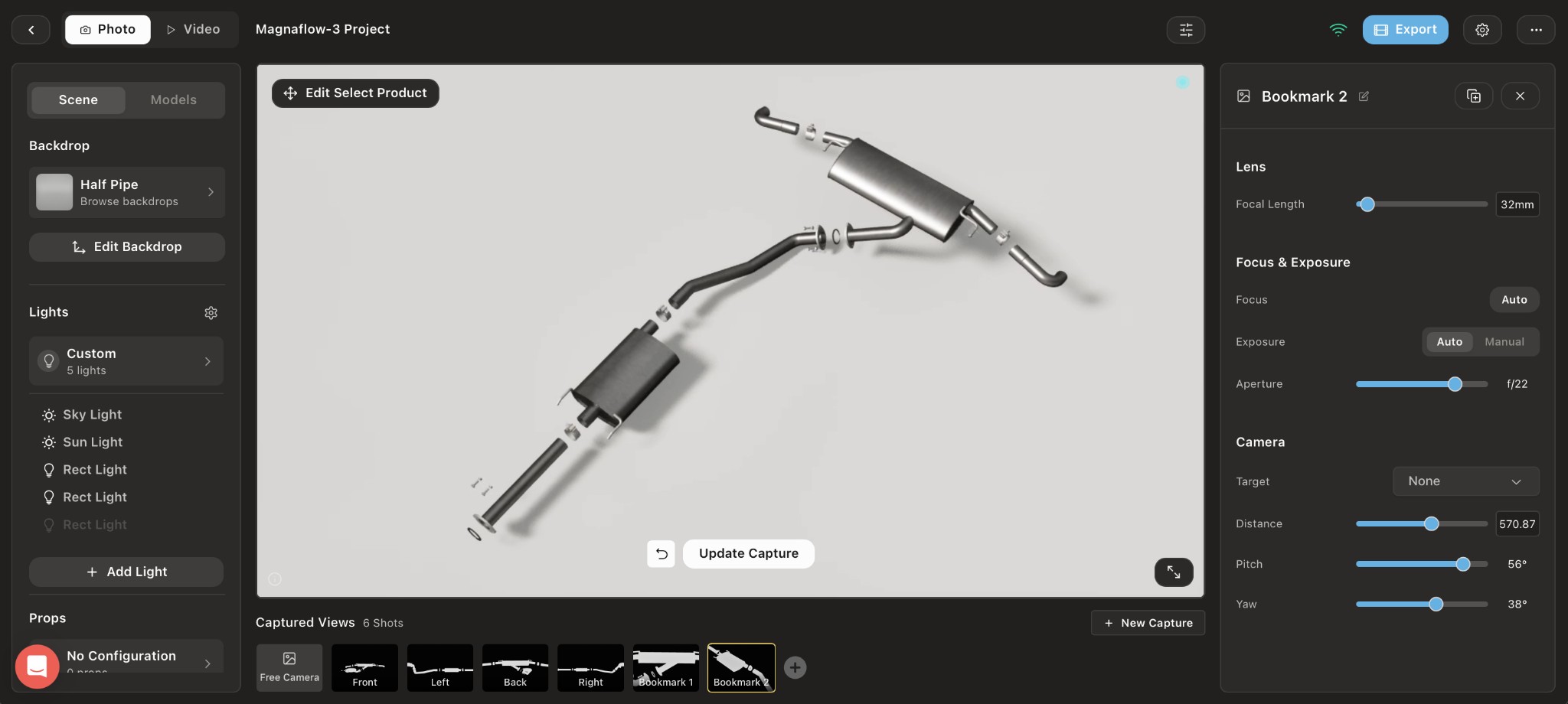 Live Unreal viewport
Film grain IncreasedVignette Adjusted
Direct the scene... ↑
AI scene building
Generate what the scene is missing.
A first model from product photos. A material from a reference image. Props, environments, and light to finish the frame. Every generation builds around a render of the real product, so the product stays the one you approved.
Explore AI + 3D docs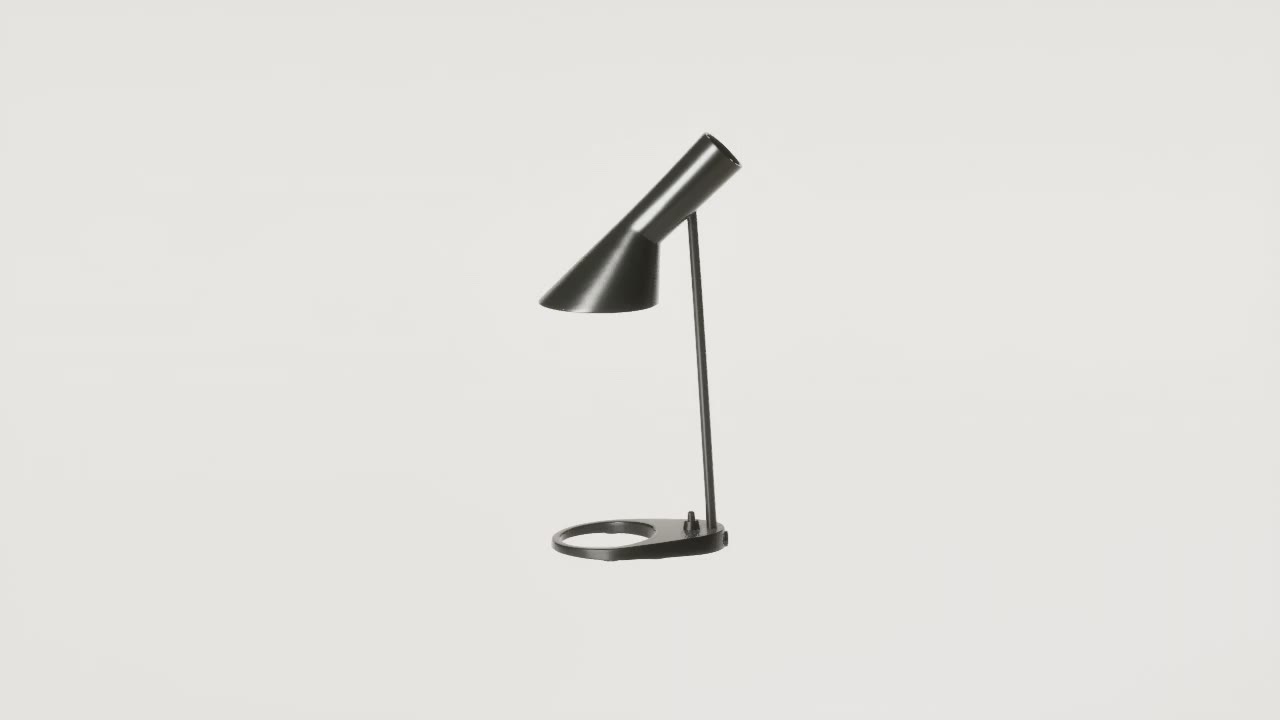
Models
Create a 3D starting point from product photos.
Generate the first model, then prepare and approve it for Studio.
Materials
Turn reference images into reusable PBR materials.
Tune the generated channels, then save the finish to your library.
Scenes
Build props and environments around the product.
New lifestyle and editorial looks, grown from the approved render.

Lighting
Match lighting from a reference.
Carry the direction, mood, and shadow cues into the AI edit.
Frequently asked questions
What teams need to know before using AI in Glossi.
How does Glossi combine AI and 3D?
Glossi replaces the flat source file with a 3D model and saved Studio scene. You render from that scene, create AI versions from the render, and keep the original render and generated versions together for comparison and further edits.
Do I need a 3D model to start?
This workflow uses a prepared 3D model, but you do not need one before you start. Upload an existing CAD or 3D file, generate a starting model from product photos, or use a Glossi preparation partner.
How does Glossi protect product accuracy?
Glossi keeps the original render and saved 3D scene available throughout the workflow. Choose Preserve framing to anchor the edit to the original size, angle, and crop. Product accuracy generates extra candidates and selects the result with the least product-placement drift.
What does Preserve framing do?
Use Preserve framing when product size, angle, and crop should stay stable during an image edit.
Can a team reuse an AI direction?
Yes. Teams can save AI Styles, references, layout guides, templates, materials, and saved views, then use them again across new renders and products.
What can the Studio Agent do in beta?
The current beta accepts plain-language requests for supported post-process controls in the live scene, including film grain and vignette. It does not yet control materials, lighting, cameras, layout, or motion.
Can Glossi create AI product video?
Yes. Glossi supports image-to-video and generative video editing in addition to video rendered from saved 3D motion. Provider availability and output quality should be tested for the intended use.
Create your first AI edit in Glossi.
Render the product, then edit it with AI. The 3D scene stays editable behind every version.