01
Choose the shot
Start from a saved view or frame a new one for motion.
Give customers a closer look with product turns, detail reveals, and camera moves. Build short clips and 360 spins from the same prepared model and scene as your stills.
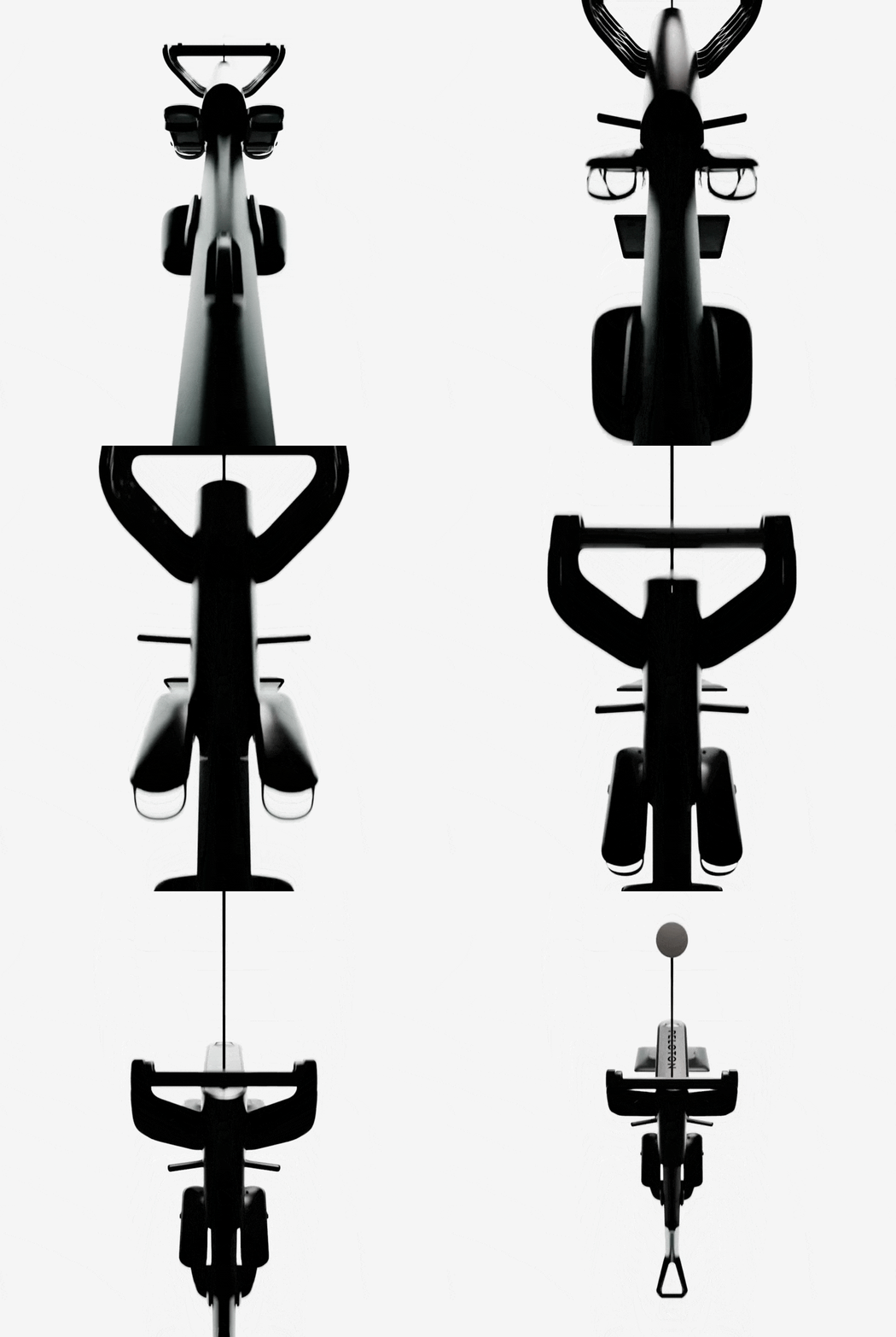
Open a saved product view, choose a precise product turn or camera move, preview the result live, then render the clip. The direct 3D path stays available when timing and framing must repeat.
Start from a saved view or frame a new one for motion.
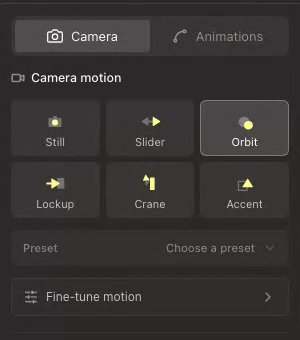
Turn the product or move the camera and light while you preview.
Check the preview and export a finished, channel-ready file.
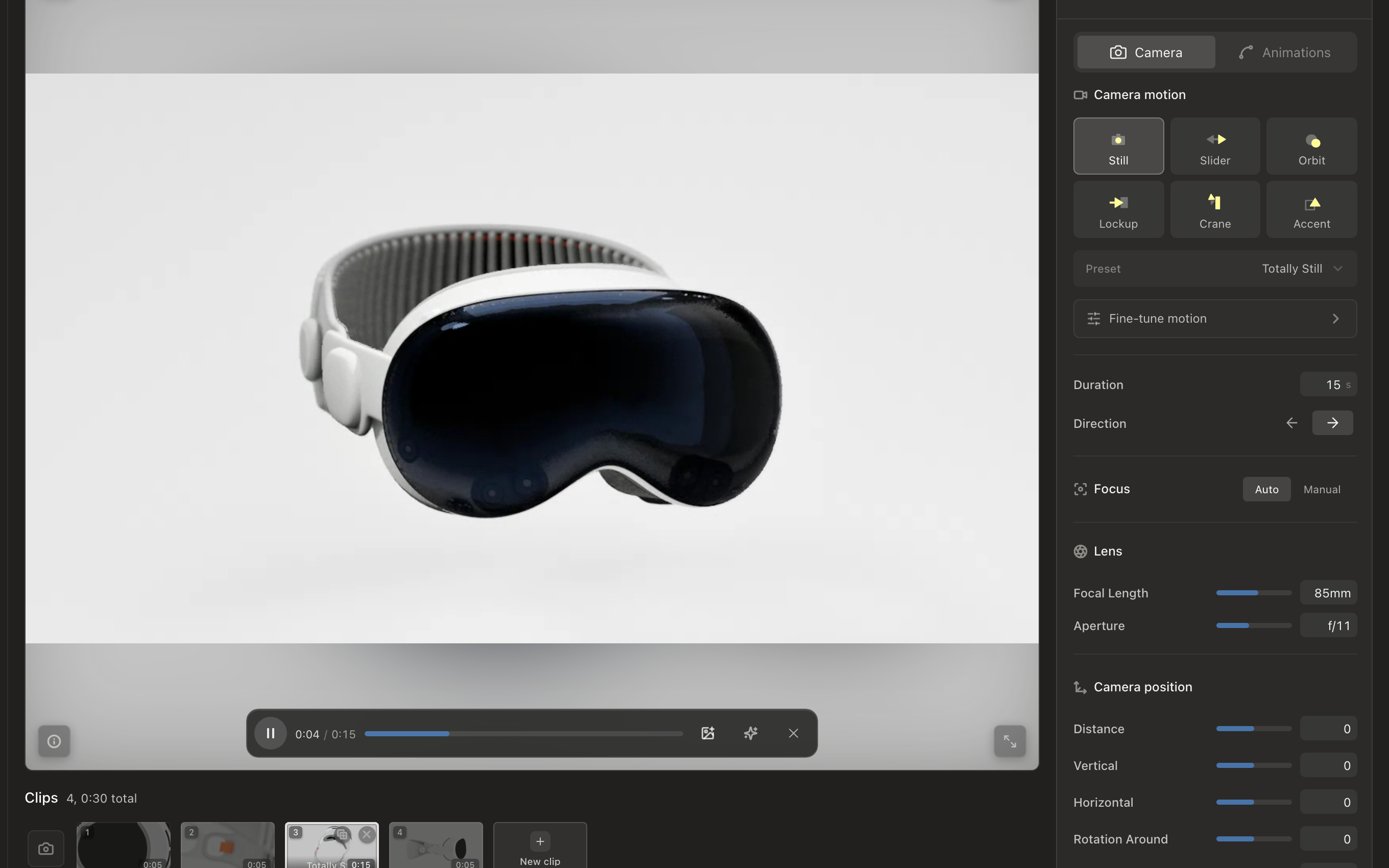
Move the camera, product, or lights in the live Unreal viewport. Set the movement, then tune timing, direction, focus, and lens settings before you render.
Where enabled, describe the motion to generate an animation starting point. Inspect the available tracks and refine the result manually; supported targets depend on the session and plan.
Set a product turn or camera orbit and preview it around the prepared model. Check the pivot and framing before rendering.
Reuse the prepared product, materials, lights, and saved views across still images, 360 spins, and short animation.
Create short product clips, camera moves, product turns, 360 spins, and supported light animation inside the live 3D scene.
Yes. Saved still views and motion clips share the same prepared product, materials, lights, and scene.
No. Glossi focuses on product motion inside the 3D scene. Editing long-form footage, audio, and complex post-production belongs in a dedicated editor.
The current Studio workflow is designed for short product clips and constrains clips to 15 seconds.
Start from an existing still scene and add the movement your channel needs.